Your Mac Used to Feel Instant. Now Every Click Takes a Little Too Long.
You notice it in the small things first. An app takes an extra second to open. Safari hesitates before a page appears. The cursor turns into that little spinning beach ball just when you are trying to get something done.
Then you start waiting for your Mac instead of the other way around. And that is the part that gets frustrating.
A Mac that feels slow is not necessarily an old Mac. It may simply be carrying more work than you can see — too many things launching at login, an app using more memory than expected, a process keeping the CPU busy, or a startup disk that has almost no breathing room left.
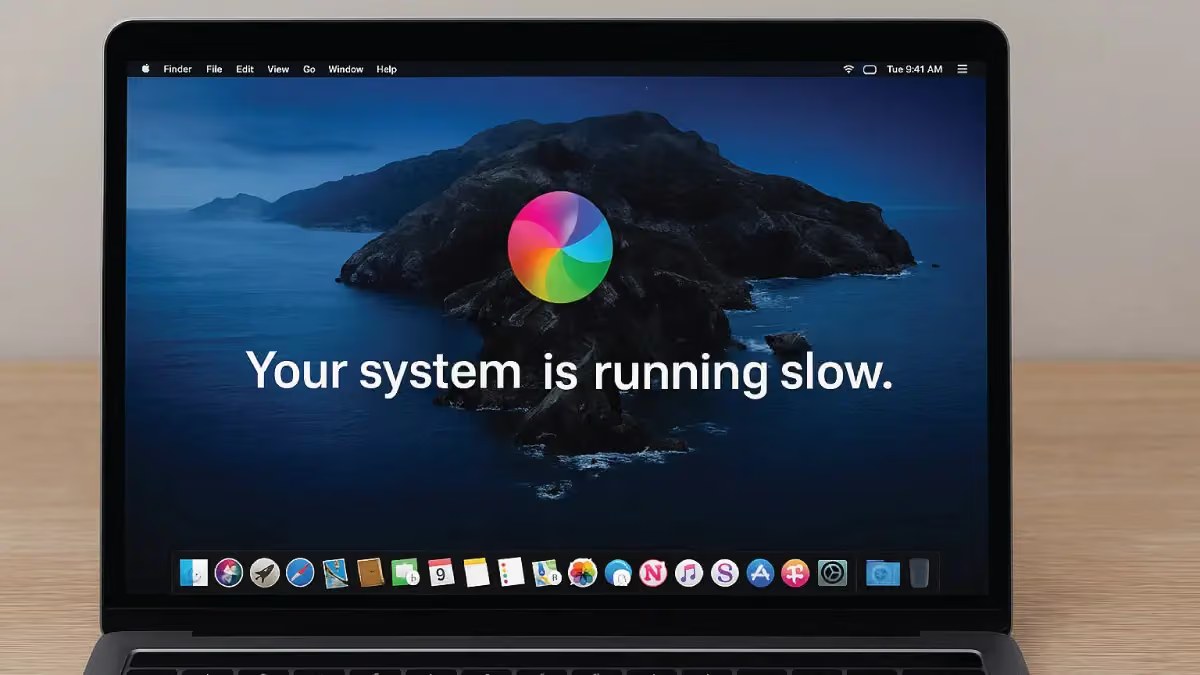
Before you start changing anything: don’t guess, and don’t install a “Mac booster” just because your Mac feels sluggish. The fastest way to improve a slow Mac is to find the thing actually making it work too hard.
Why Does a Mac Start Feeling Slow?
Your Mac is doing much more behind the scenes than the screen lets you see. Apps sync files, browsers keep tabs and extensions alive, cloud services update in the background, and macOS constantly manages memory, storage, graphics and other system activity.
Sometimes one demanding app is enough to change the whole experience. Sometimes several small background tasks add up. And sometimes the problem is simply that your Mac is being asked to start more and more things every time you log in.
The important part is this: slow does not automatically mean broken. It often means something is consuming resources that could be working for you.
The First Place to Look: Activity Monitor
Activity Monitor is one of the most useful tools already built into macOS. It can show you which apps and processes are using CPU, memory, energy, disk and network resources.
Open it from Applications → Utilities → Activity Monitor and start with the CPU tab. You are looking for something that stays unusually busy when you are not doing anything demanding.
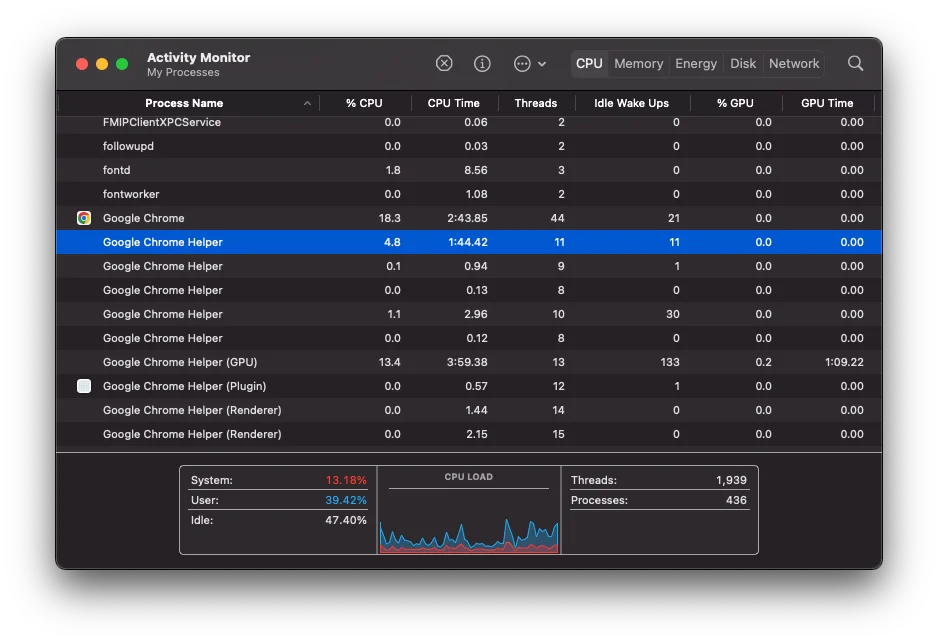
You may see a familiar app near the top. You may also see a process you have never heard of. That is where a little caution matters: not every busy process is a problem. macOS has system processes that are doing important work, and some activity is completely normal.
What About kernel_task, WindowServer and Other “Scary” Processes?
Seeing a process such as kernel_task using a lot of CPU can look alarming. But it is not something you should simply kill. Apple explains that kernel_task can increase its activity to help manage CPU temperature by making processor resources less available to demanding processes.
In other words, the useful question is not “How do I get rid of kernel_task?” It is “What is making my Mac work so hard in the first place?”
The same principle applies to other system processes. A process name by itself rarely tells the whole story. Look at what is happening around it — which apps are open, whether the Mac is hot, whether fans are running, whether storage is nearly full, and whether the slowdown disappears after quitting a particular app.
Is Your Mac Working Before You Even Start?
One of the easiest sources of unnecessary work is the login process. Some apps are configured to open automatically when you sign in. Others may be allowed to perform background activity even when you are not actively using them.
Over time, that list can quietly become crowded. The result is a Mac that begins every morning with a long to-do list before you have even opened your first app.
Go to System Settings → General → Login Items & Extensions and look through what launches automatically. If you no longer need an app opening every time you start your Mac, removing it from Login Items can make the startup experience feel noticeably cleaner.
Low Storage Can Make a Slow Mac Feel Even Worse
Storage and performance are more connected than many people realise. Apple lists low startup-disk space among the possible causes of a slow Mac and recommends checking Storage settings when you need to make room.
If your drive is crowded with old downloads, enormous media files, unused apps or years of accumulated data, freeing up space is worth doing before you start chasing more complicated explanations.
You do not need a perfectly empty drive. You simply want enough room for macOS and your apps to work comfortably — and enough room left for the things you actually use your Mac for.
Find the Heavy CPU Users in Seconds
If you want a quick snapshot without clicking through several windows, Terminal can give you one. The command below lists processes using the most CPU at the moment you run it.
It is deliberately simple and read-only. It does not quit processes, change settings or delete anything. It simply gives you a clearer picture of what your Mac is working on right now.
Now follow these three simple steps.
Copy the Command
Click below to copy the command. It only takes a quick snapshot of current CPU activity; it does not change anything on your Mac.
ps -Ao %cpu,pid,comm | sort -nr | head -10
Paste into Terminal
Open Terminal from Applications → Utilities, then paste the command using:
⌘ Command + V
You are not changing the system. You are simply asking macOS to show you which processes are currently asking for the most CPU.
Press Enter
Press Enter ↵ and give Terminal a moment to return the list.
What This Command Actually Tells You
The command asks macOS for a list of running processes, includes their CPU usage, sorts the results from highest to lowest, and shows the busiest entries first. It is a quick way to turn “my Mac feels slow” into something you can actually see.
The Goal Isn’t to Make Your Mac Work Less. It’s to Make It Work for You.
This is where good optimization feels different from a random cleanup. You are not trying to make the Activity Monitor window look empty. You are trying to remove the friction between you and the things you actually want to do.
Imagine opening your Mac and getting straight to work. No unnecessary apps fighting for attention. No mystery process eating resources all afternoon. No endless waiting for a window that should have appeared instantly.
The best result is almost invisible: your Mac simply feels easier again. Quicker. Lighter. More responsive. You stop thinking about what the computer is doing and get back to thinking about what you are doing.
Give Your Mac That Fresh, Responsive Feeling Again
A slow Mac does not always need dramatic repairs or a new machine. Sometimes it needs a careful look at the small things that have accumulated around it: background apps, login items, demanding processes, crowded storage and software that no longer behaves the way it should.
And when you approach those things in the right order, optimization becomes much less intimidating. You find the cause. You fix what actually needs fixing. You leave the rest alone.
That is the difference between blindly “cleaning” a Mac and genuinely taking care of it. The reward is not a prettier list of system numbers. It is that lovely moment when you click, open, switch and create — and everything just keeps up with you.
Still Waiting for Your Mac to Catch Up?
If your Mac is still slow after checking CPU activity, login items and available storage, there may be a deeper software or hardware issue worth investigating. A proper optimization should look at the whole picture rather than forcing one questionable command onto every Mac.
Your Mac should feel like the fast, effortless tool you bought it to be. If it has started getting in your way, it may simply be time to give it the attention it has been quietly asking for.